
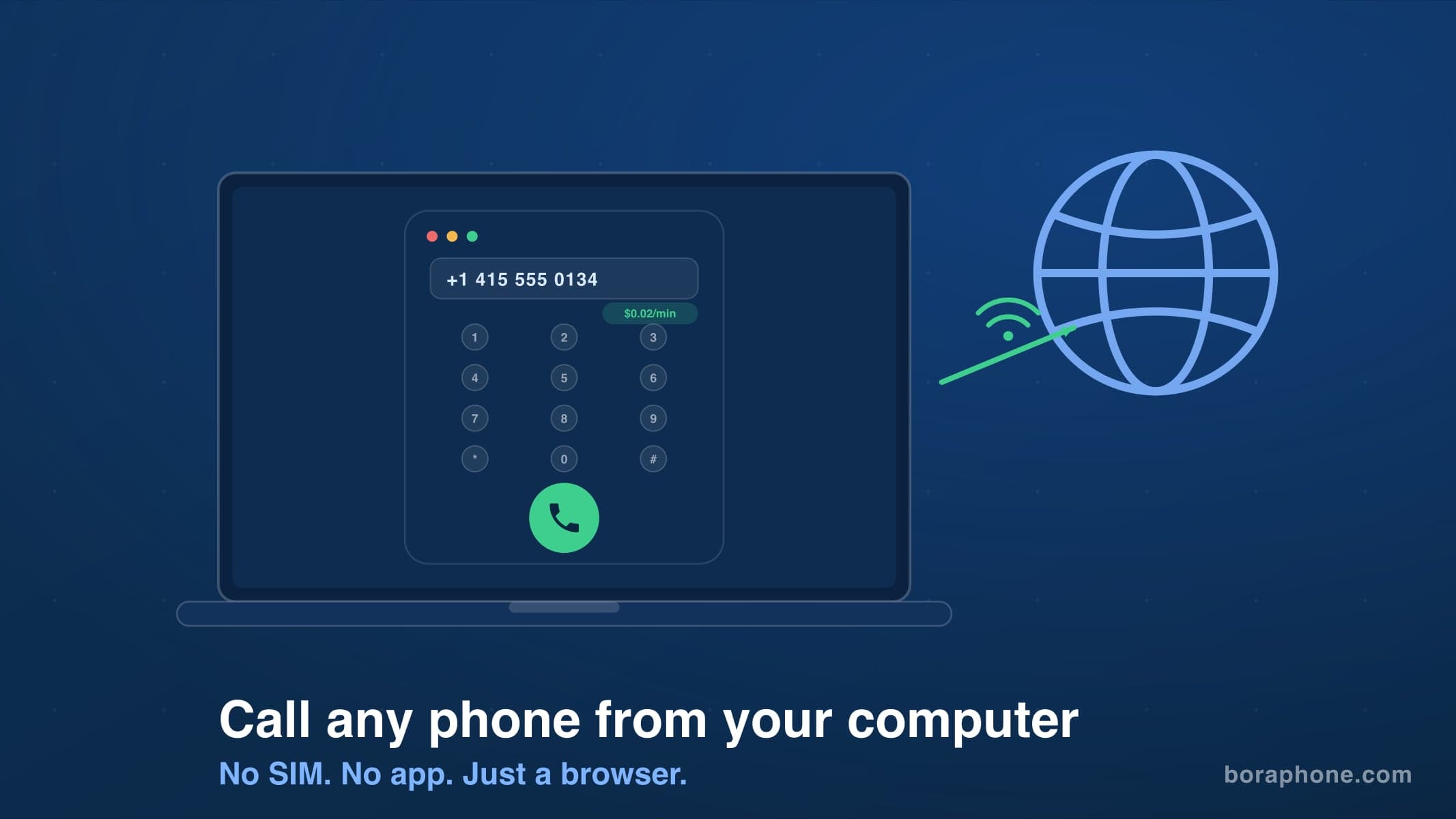
How to Make a Phone Call from Your Computer (PC, Mac or Laptop)

You can make a phone call from your computer in under a minute. You do not need a phone plan, a SIM card, or even a phone in the room. All you need is a browser, a microphone, and an internet connection. That is true for a desktop PC, a Mac, a laptop on hotel Wi-Fi, and a Chromebook.
This guide covers every method that works in 2026. Some are free, some cost a few cents per minute, and some only work if your phone is nearby. We tested each one on both Windows and Mac so you can pick the right option for your situation. If you just want to see what a call to a specific number would cost from a computer, type it into the dialer below.
Sign up with an email, no card. Billed per minute, rounded up, no subscription.
The Quick Answer
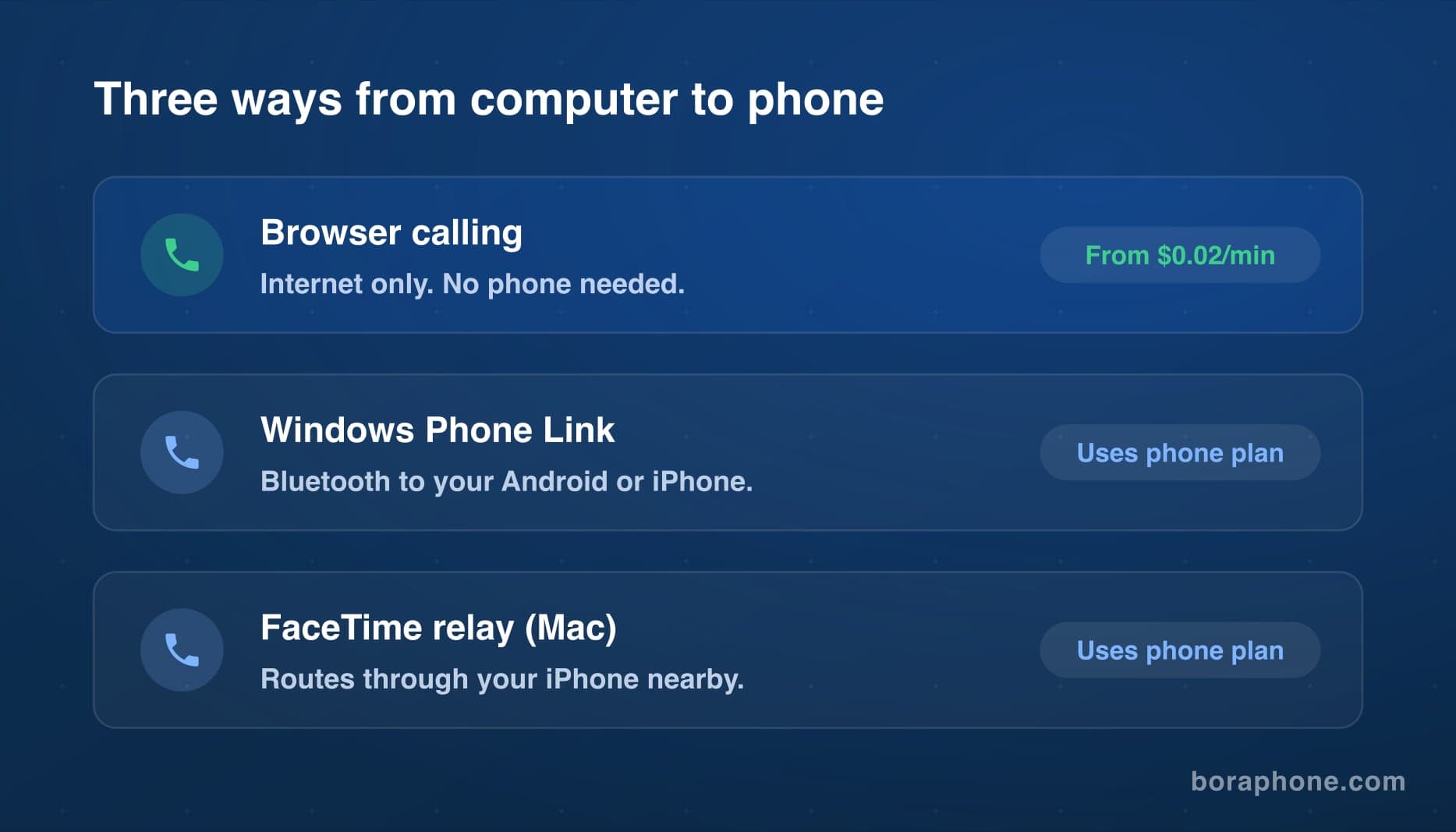
If you want to call a real phone number (a mobile or landline) directly from your computer, you have five realistic options:
| Method | Works on | Needs your phone? | Cost |
|---|---|---|---|
| Browser calling (BoraPhone) | Any computer with a browser | No | From $0.02/min, first call free |
| Windows Phone Link | Windows 10/11 | Yes, paired Android or iPhone | Uses your phone plan |
| FaceTime call relay | Mac | Yes, iPhone on same network | Uses your phone plan |
| Google Voice | Any browser (US residents only) | No | Free to US/Canada, paid international |
| Skype replacements | Varies | No | Varies |
The rest of this article walks through each one step by step.
Method 1: Call from Your Browser (Works on Any Computer)
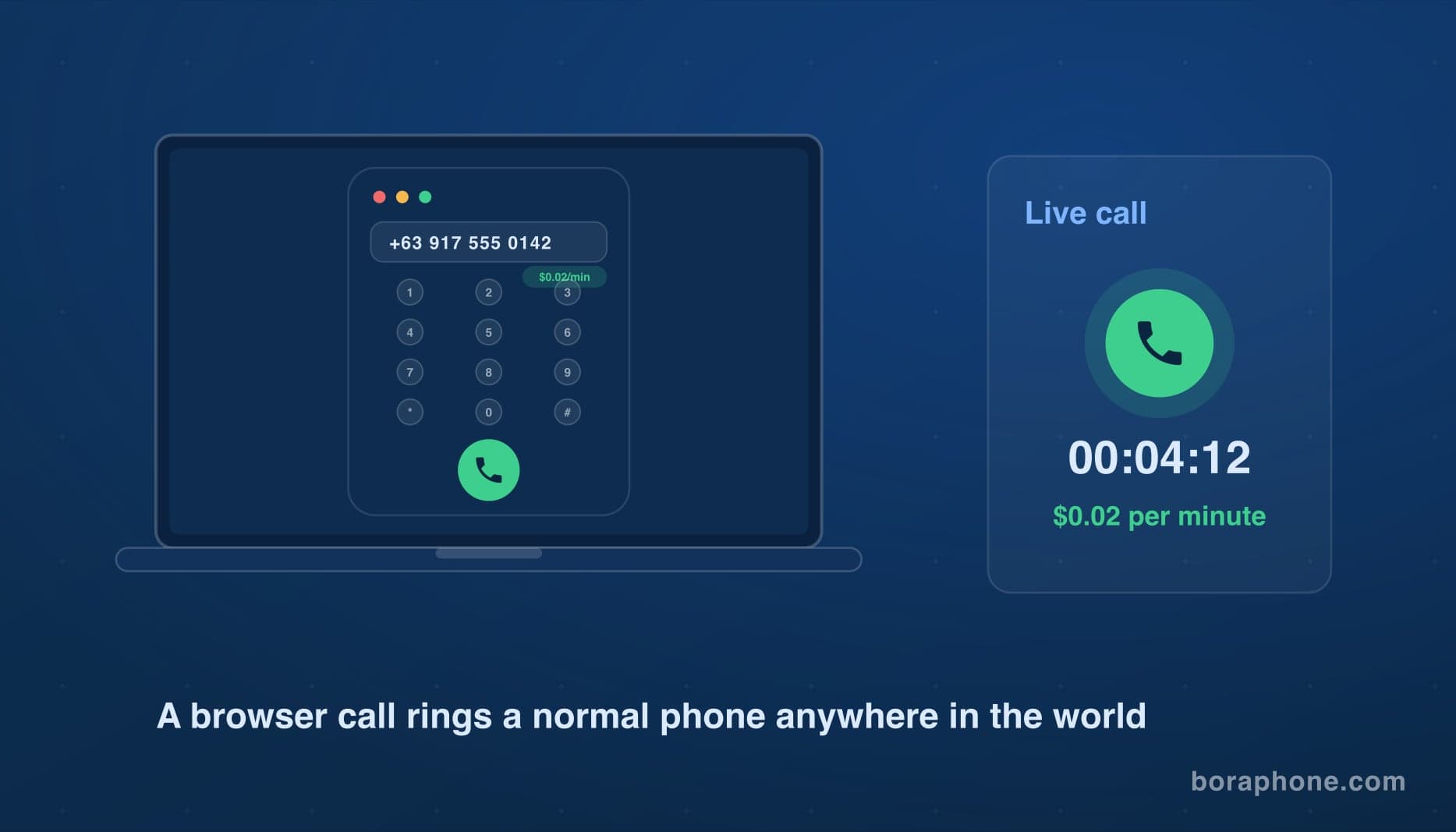
The simplest way to call a phone number from a computer is a browser-based calling service. There is nothing to install. The call runs over the internet from a web page, and the person you call answers on their normal phone. They do not need an app or an internet connection.
Here is how it works with BoraPhone:
- Open boraphone.com in Chrome, Firefox, Safari, or Edge.
- Sign up with your email. Your first call is free and no credit card is required.
- Type the phone number, including the country code if it is international.
- Check the per-minute rate shown before you dial.
- Click call and allow microphone access when your browser asks.
That is the whole process. Calls connect in a few seconds and you pay per minute only for the time you talk. There is no subscription and no connection fee. You can check the exact price for any country with the rate calculator before you commit to anything.
This method has two big advantages over the phone-pairing options below. First, it works on any computer, including a work laptop, a Chromebook, or a borrowed machine. Second, it does not need your phone at all, which matters if your phone is lost, broken, or has no signal.
If you want a deeper comparison of the services in this space, we tested seven of them head to head in our browser-based calling services review.
Method 2: Windows Phone Link (Uses Your Phone Plan)
Windows 10 and 11 include an app called Phone Link. It connects your computer to your Android phone or iPhone over Bluetooth and lets you dial from your PC. The call itself still goes through your phone and your mobile plan.
To set it up:
- Open the Phone Link app on your PC (search "Phone Link" in the Start menu).
- Install the companion app on your phone (Link to Windows).
- Pair the two devices over Bluetooth and grant the permissions it asks for.
- Open the Calls tab in Phone Link and dial.
Phone Link is convenient for local calls because it uses minutes you already pay for. It has real limits though. Your phone must be on, nearby, and connected over Bluetooth. Audio quality depends on your Bluetooth connection, and some users report lag or dropped pairing. Most important, international calls are billed at your carrier's international rates, which are often $1.00 to $3.50 per minute in the US. For calls abroad, a VoIP call at a few cents per minute is dramatically cheaper. Our cost comparison of VoIP vs carrier international calls breaks down the difference with real numbers.
Method 3: FaceTime Call Relay on Mac (iPhone Required)
If you have a Mac and an iPhone on the same Wi-Fi network, you can place regular phone calls from the Mac. Apple calls this "iPhone Cellular Calls." The Mac acts as a speaker and microphone while the call routes through your iPhone.
To enable it:
- On your iPhone, go to Settings, then Phone, then Calls on Other Devices, and turn it on for your Mac.
- On your Mac, open FaceTime, go to Settings, and check "Calls from iPhone."
- Dial from FaceTime, Contacts, or click any phone number in Safari.
Like Phone Link, this uses your normal phone plan, so the same warning applies: domestic calls are effectively free, international calls bill at carrier rates. Note that FaceTime audio and video calls between Apple devices are a different thing entirely. Those are free app-to-app calls, and they only work if the other person also has an Apple device.
Method 4: Google Voice (US Residents Only)
Google Voice gives you a free US phone number and lets you call from voice.google.com in any browser. Calls to US and Canadian numbers are free. International calls are paid at per-minute rates.
The catch is availability. Google Voice signup requires a US phone number and a US location. If you live outside the US, you cannot sign up, and calling from a foreign IP address is often blocked even for existing accounts. We cover the workarounds and better options in our guide to Google Voice alternatives outside the US.
For US users calling US numbers from a computer, Google Voice is genuinely hard to beat on price, because it is free. For international calls, compare rates first. Our Google Voice vs BoraPhone comparison looks at where each one wins.
Method 5: What About Skype?
Microsoft retired Skype in May 2025, and it is still the first thing many people think of when they want to call from a computer. If you were a Skype user, you need a replacement. Microsoft points people to Teams, but Teams does not fit the "just call a phone number cheaply" use case well for individuals.
We keep an updated list of the best Skype alternatives for international calls, with tested rates and honest notes on each service.
What About Free Calling Sites?
Sites like PopTox, Globfone, and CitrusTel let you call phone numbers from a browser for free, with heavy limits. Expect a couple of minutes per day, ads, and inconsistent audio quality. They are fine for a single quick call and frustrating for anything more. We tested the major ones in our roundup of free calling websites if you want to see what each one actually gives you.
Calling from a Laptop When Your Phone Is Not Available
The situations that send most people to this page are the ones where the phone is the problem: it is lost, it is dead, it has no signal in a basement office, or the SIM stopped working the moment you landed abroad. Every method that relays through your phone (Phone Link, FaceTime relay) is useless then. Browser calling is the one that still works, because the call starts and ends on the laptop.
Three practical notes for that case:
- Hotel and airport Wi-Fi is fine. A voice call needs far less bandwidth than a video stream. If a web page loads, a call will connect.
- Use the laptop's headphone jack or Bluetooth earbuds. Built-in laptop microphones pick up the speakers and cause echo on the other end.
- The person you call needs nothing. Their phone rings normally, with your caller ID if you have verified one, and they answer on a landline or mobile as usual.
Checklist Before Your First Computer Call
A few small things make a big difference in call quality:
- Use a headset or earbuds. Laptop speakers plus laptop microphone often cause echo for the other person.
- Allow microphone access. Your browser will ask the first time. If you clicked block by mistake, look for the microphone icon in the address bar.
- Prefer Wi-Fi or wired internet. A stable connection matters more than a fast one. Video streaming uses far more bandwidth than a voice call.
- Include the country code. For international numbers, dial the plus sign, the country code, then the number. Our international calling checklist covers number formats in detail.
Frequently Asked Questions
Can I make a call from my computer for free?
Yes, with limits. Google Voice is free for US to US/Canada calls if you are a US resident. Free calling websites offer a few minutes per day with ads. App-to-app calls on WhatsApp or FaceTime are free but require the other person to have the same app. Calls to regular phone numbers abroad are not free anywhere without a catch, but they can cost just a few cents per minute over VoIP.
Do I need a SIM card or phone number to call from a computer?
No. Browser calling services like BoraPhone place the call entirely over the internet. You do not need a SIM, a phone number, or a phone. The person you call sees an incoming call on their normal phone.
Can the person I call answer on a regular landline?
Yes. That is the point of computer-to-phone calling. The call leaves the internet and enters the regular phone network, so any mobile or landline can receive it. The person you call needs nothing special.
Why does my computer call sound bad?
The usual causes are a weak Wi-Fi signal, a built-in laptop microphone picking up speaker output, or a congested network. Switch to a headset and move closer to your router. If quality is still poor, the service itself may be the problem. Paid services route calls through better carriers than free ad-supported sites.
What is the cheapest way to call internationally from a computer?
Browser-based VoIP is almost always the cheapest way to reach a real phone number abroad. Rates start at a few cents per minute depending on the country. You can look up any destination on the rates page before calling.
The Bottom Line
If your phone is nearby and you are calling domestically, Phone Link or FaceTime relay are free and convenient. If you are a US resident calling US numbers, Google Voice is free. For everything else, especially international calls or any situation where your phone is not available, browser calling is the fastest and cheapest option. You can try it now with a free first call, no credit card needed.

Written by
Serpius DentoSerpius works with communication and customer relations at BoraPhone. With hands-on experience helping users navigate international calling, he writes practical guides based on real conversations with customers worldwide.
Recent Posts
5 Minute Free Call: Where to Actually Get Free Minutes in 2026
Looking for a 5 minute free call online? Here is every service that gives you free calling minutes, how many you really get, and how to make a short free call to any country right now.
How to Call a Phone from Google: Every Option Explained
Can you call a phone number from Google? Yes, several ways: Google Voice, Google Meet, Assistant, and search. Here is how each works, what it costs, and what to use instead when Google says no.
How to Call Internationally Without an App (2026 Guide)
You do not need to download anything to call another country. Browser calling, direct dialing, calling cards, and roaming-free options compared, with real costs for each.